
6 Club App Setup and Home Screen Access
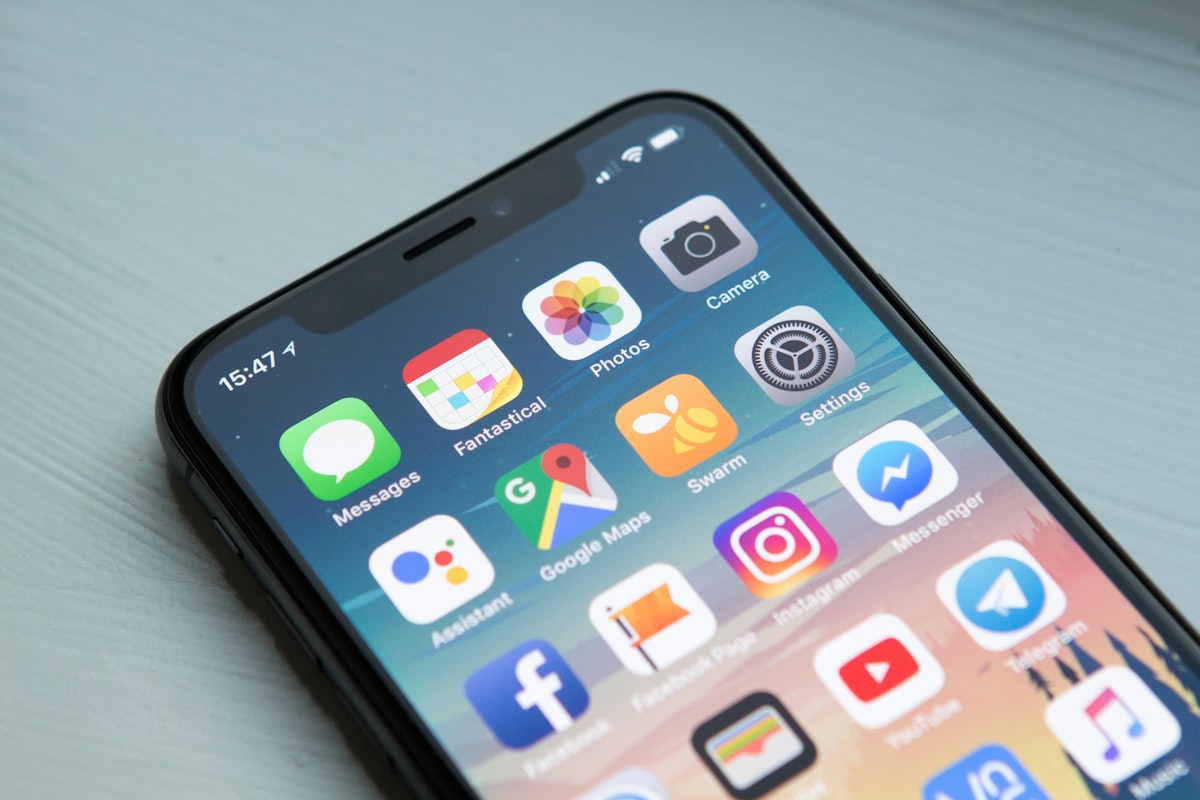
6 Club can be added to your Android or iOS home screen so the official page is always one tap away, reducing the chance of landing on a lookalike link. This guide covers the browser shortcut method, safe launch habits, and notification permissions needed for OTP delivery.
Mobile
7 min
6 Club होम पेज इस नॉलेज क्लस्टर का मुख्य आधार है। वहां से आप सभी प्रमुख पिलर्स और अपडेट्स तक पहुंच सकते हैं।
होम पेज देखेंहर 6 Club लेख एक स्पष्ट क्रम का पालन करता है: वादा, स्टेप्स, चेकलिस्ट और सपोर्ट पाथ्स। स्टेप्स लागू करें, फिर अपनी लेजर रखें ताकि अगला सेशन शांत और ज्यादा प्रेडिक्टेबल हो।
Android Setup
Chrome shortcut saved from the official URL.
iOS Setup
Safari Share then Add to Home Screen.
Safe Launch
Shortcut removes the phishing link risk.
Adding 6 Club to Your Android Home Screen
Open Chrome on your Android device and navigate to the official 6 Club URL. Tap the three-dot menu in the top-right corner and choose Add to Home Screen. Give the shortcut the label 6 Club so it is easy to find. This creates a browser shortcut — not a native app — that opens the correct URL every time you tap it.
Before saving, confirm the URL in the address bar matches the official domain you have bookmarked. A mismatched URL is a clear sign you may be on a lookalike page. Once the shortcut is saved, test it by opening it immediately and checking the address bar.
- Use Chrome or your phone's default browser for the shortcut.
- Confirm the domain in the address bar before saving.
- Label the shortcut clearly so you do not confuse it with unrelated icons.
Adding 6 Club to Your iOS Home Screen
On Safari, navigate to the official 6 Club URL. Tap the Share button at the bottom of the screen — it looks like a box with an arrow pointing up — and scroll down the share sheet to Add to Home Screen. Confirm the name and tap Add in the top-right corner. The shortcut appears on your home screen as a square icon.
iOS shortcuts open directly in Safari at the saved URL, not in a separate app. Keep the 6 Club shortcut on a clean home screen page alongside your bank or payment app so you can verify the official route before each session. Do not download third-party apps that claim to be the 6 Club app from unofficial sources.
- Use Safari on iOS — the Add to Home Screen option is in the Share sheet.
- The icon opens in Safari, not a separate standalone app.
- Avoid any third-party launchers or app installers claiming to be 6 Club.
Notification Permissions for OTP Delivery
After adding the shortcut, check that your browser allows notifications from the 6 Club domain. On Android, open Chrome settings, go to Site Settings, then Notifications, and confirm the 6 Club URL is set to Allow. On iOS, Safari notification permissions are managed per-site in Settings — Safari — Notifications.
Keep your phone's Focus or Do Not Disturb mode configured to allow alerts from your browser during a session. A silenced OTP notification means you cannot complete login or confirm a payment, which stalls the process.
Safe Launch Habits
Always open 6 Club from the home screen shortcut or your bookmarked URL — not from a link in a text message, email, or social post. Links sent via chat may lead to phishing pages that look visually identical to the official site. The home screen shortcut removes that risk entirely because it always opens the URL you confirmed when you created it.
If someone sends you a 6 Club link, compare it carefully to your saved URL before clicking. Report any suspicious link through the official support page — do not enter your credentials on any page reached through an unverified link.
- Open from the shortcut at the start of every session.
- If someone sends a 6 Club link, compare it to your saved URL before clicking.
- Report suspicious links through official support, not through the suspicious page itself.
चेकलिस्ट